
Connect Exa MCP to your AI agents, securely.
One secured endpoint for every Exa call your AI agents make, scoped per user, inspected, and logged.Try Exa MCP now
What your agents can ask once Exa MCP is connected.
Select the tools your AI agents can call
4 tools from the Exa MCP schema.
Showing 4 tools
What Exa MCP exposes
Exa MCP groups its 4 tools into 2 categories, each with a suggested starting policy.
All 4 tools as JSON, ready to paste.
| Category | Covers | Access | Suggested policy |
|---|---|---|---|
| Search & Fetch | Web search returning clean content, advanced search with domain, date, highlight, summary and subpage-crawl filters, and reading one or more pages as markdown | Read | Treat everything returned as untrusted third-party text, never as instructions. Only the two basic tools are on by default |
| Agent | Running an Exa Agent for multi-step research, list-building, enrichment and structured output | Read / Write | Off by default and the only tool that requires authentication; an agent run is open-ended, so approve and bound it |
Connect Exa MCP to your AI agent
Four steps, under ten minutes.
- 01
Sign in to NeuralTrust
Open the NeuralTrust platform, sign in and go to Getting started, then Connect your tools.
- 02
Choose your agent
When asked which agent you use, pick Claude Code, Codex, Cursor, Windsurf, Copilot or your own code.

- 03
Connect Exa
Find Exa in the tool list and connect it.
- 04
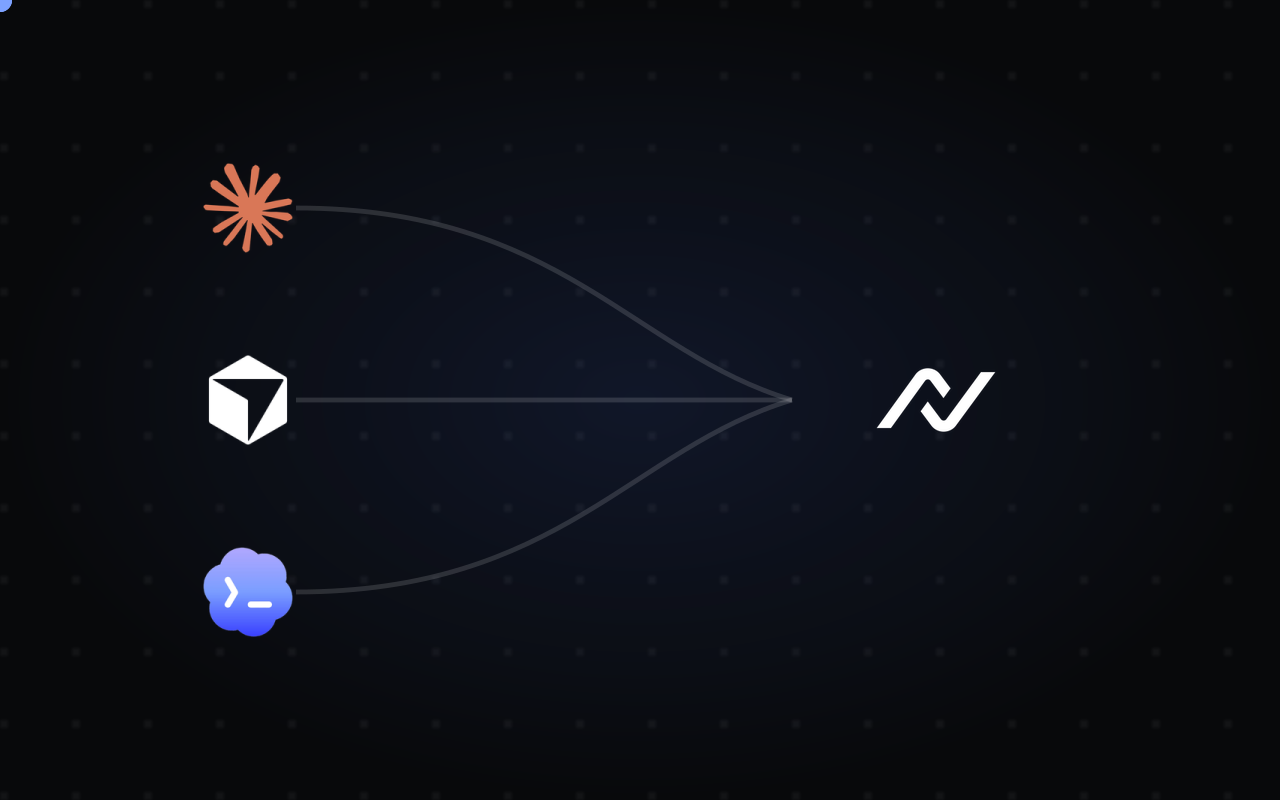
Connect your agent
Follow the steps on screen to add the config to your agent, then send the test prompt.
Permissions down to the single tool
You do not allow Exa MCP or block it. You allow the exact tools each agent can call, one by one.
| Exa MCP | 4 TOOLS AVAILABLE |
|---|---|
| Code review agent | 4 tools, read only |
| Issue triage bot | 9 tools |
| Platform team assistant | all 4 tools |
- Tool by toolConnecting the server is not the unit of access. Each tool is granted on its own.
- Default denyA tool you have not enabled is never exposed to the agent.
- Approval on writesTools that change or delete things can require a human to confirm.
Is Exa MCP secure?
One endpoint instead of raw credentials. Every call is checked against policy and logged.
| AI agentsConnect through your MCP client configuration. | NeuralTrustApply controls based on your configuration. | Exa MCP4 documented tools. Two are enabled by default; the tools URL parameter replaces that default set rather than extending it. |
|---|---|---|
| Coding assistants | Connection & credentialsper user | Search & Fetch3 tools |
| Internal copilots | Tool access policiesdeny by default | Agent1 tool |
| Workflow automations | Request & response inspectioninline | |
| Compatible MCP clients | Activity monitoringalerts and logs |
Use Exa MCP with any AI agent framework
Setup guides for the tools your team already uses.
 Claude CodeAdd Exa MCP to Claude Code from the terminal
 CursorUse Exa MCP tools inside Cursor's agent
 CodexConnect Exa MCP to the OpenAI Codex CLI
 WindsurfGive Windsurf's Cascade access to Exa MCP
 Gemini CLICall Exa MCP from Gemini CLI prompts
 Google AntigravityLet Antigravity agents work with Exa MCP
 GitHub CopilotUse Exa MCP in Copilot agent mode
 Claude EnterpriseRoll out Exa MCP across your Claude workspace
 Microsoft Copilot StudioAdd Exa MCP as a tool for Copilot Studio agents
 Open WebUIBring Exa MCP tools into Open WebUI chats
 LangChainLoad Exa MCP tools into LangChain agents
 HaystackPlug Exa MCP into Haystack agent pipelines
 Strands AgentsGive Strands agents Exa MCP tools
 Vercel AI SDKCall Exa MCP from Vercel AI SDK apps
 n8nUse Exa MCP in n8n AI agent workflows
Common questions about running Exa MCP through TrustGate.
Other MCP servers
More servers from the catalog.

Tavily
Securely connect your AI agents to Tavily through TrustGate: real-time web search, content extraction, site crawling, site mapping and autonomous research, scoped per agent and logged.
5 toolsView
Firecrawl
Securely connect your AI agents to Firecrawl through TrustGate: web scraping, search, crawling, document parsing, autonomous research and live page interaction, scoped per agent and logged.
30 toolsView)
Bright Data
Securely connect your AI agents to Bright Data through TrustGate: search engine scraping, page unlocking, pre-built Scraper API scrapers, dataset search and full browser automation, scoped per agent and logged.
32 toolsView)
Glean
Securely connect your AI agents to Glean through TrustGate: permission-aware enterprise search, chat, document reading, code search, people lookup and memory, scoped per agent and logged.
16 toolsView
Connect Exa MCP instantly
Pick the tools, point your agent at TrustGate, and Exa MCP is live: scoped, inspected, logged.