)
Connect Granola MCP to your AI agents, securely.
One secured endpoint for every Granola call your AI agents make, scoped per user, inspected, and logged.Try Granola MCP now
What your agents can ask once Granola MCP is connected.
Select the tools your AI agents can call
9 tools from the Granola MCP schema.
Showing 9 tools
What Granola MCP exposes
Granola MCP groups its 9 tools into 3 categories, each with a suggested starting policy.
All 9 tools as JSON, ready to paste.
| Category | Covers | Access | Suggested policy |
|---|---|---|---|
| Meetings | Natural-language queries over meetings, listing notes and reading their content | Read | Notes can hold private notes as well as shared ones; restrict access |
| Transcripts | Raw meeting transcripts with speaker labels | Read | Transcripts are governed by a separate workspace switch and are off for some accounts |
| Organization | Folders the user can access and the connected account | Read / Write | MCP follows the active Granola workspace |
Connect Granola MCP to your AI agent
Four steps, under ten minutes.
- 01
Sign in to NeuralTrust
Open the NeuralTrust platform, sign in and go to Getting started, then Connect your tools.
- 02
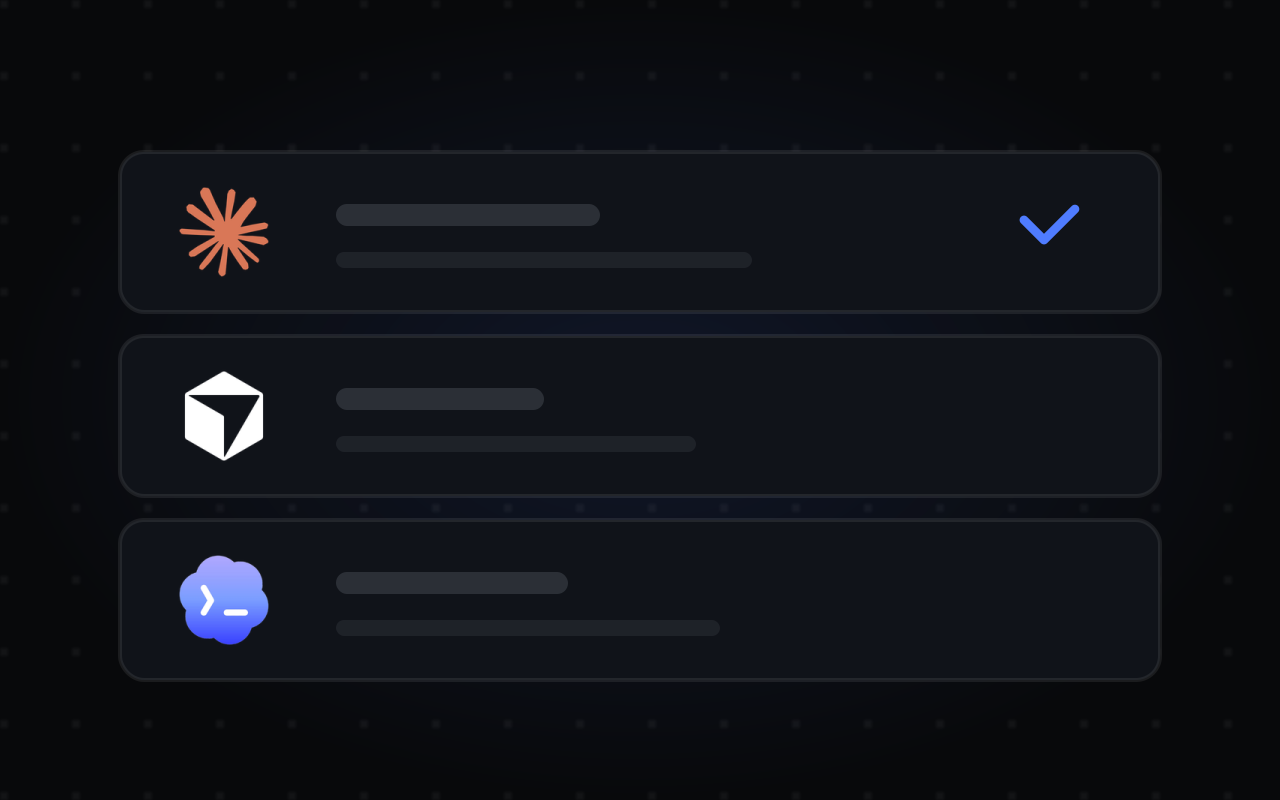
Choose your agent
When asked which agent you use, pick Claude Code, Codex, Cursor, Windsurf, Copilot or your own code.
- 03
Connect Granola
Find Granola in the tool list and connect it.
- 04
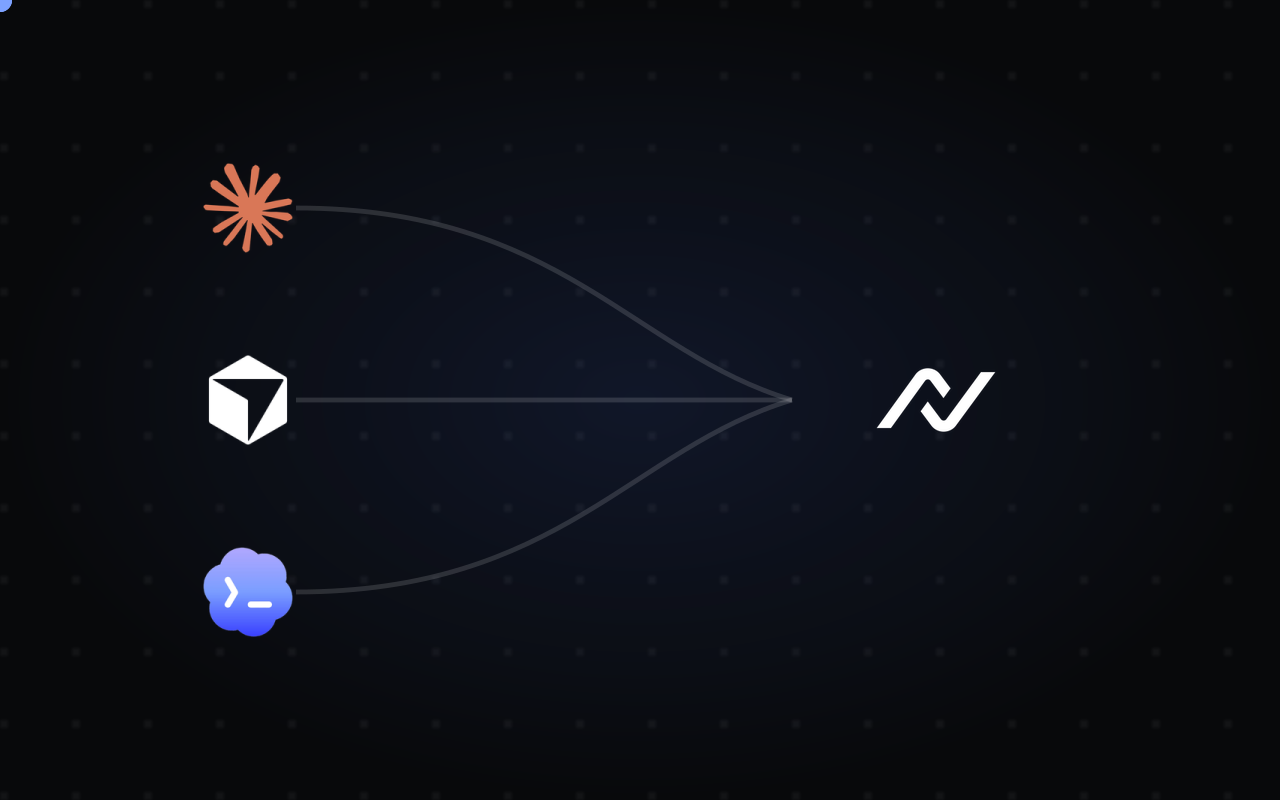
Connect your agent
Follow the steps on screen to add the config to your agent, then send the test prompt.
Permissions down to the single tool
You do not allow Granola MCP or block it. You allow the exact tools each agent can call, one by one.
| Granola MCP | 9 TOOLS AVAILABLE |
|---|---|
| Code review agent | 4 tools, read only |
| Issue triage bot | 9 tools |
| Platform team assistant | all 9 tools |
- Tool by toolConnecting the server is not the unit of access. Each tool is granted on its own.
- Default denyA tool you have not enabled is never exposed to the agent.
- Approval on writesTools that change or delete things can require a human to confirm.
Is Granola MCP secure?
One endpoint instead of raw credentials. Every call is checked against policy and logged.
| AI agentsConnect through your MCP client configuration. | NeuralTrustApply controls based on your configuration. | Granola MCP9 documented tools. |
|---|---|---|
| Coding assistants | Connection & credentialsper user | Meetings4 tools |
| Internal copilots | Tool access policiesdeny by default | Organization4 tools |
| Workflow automations | Request & response inspectioninline | Transcripts1 tool |
| Compatible MCP clients | Activity monitoringalerts and logs |
Use Granola MCP with any AI agent framework
Setup guides for the tools your team already uses.
 Claude CodeAdd Granola MCP to Claude Code from the terminal
 CursorUse Granola MCP tools inside Cursor's agent
 CodexConnect Granola MCP to the OpenAI Codex CLI
 WindsurfGive Windsurf's Cascade access to Granola MCP
 Gemini CLICall Granola MCP from Gemini CLI prompts
 Google AntigravityLet Antigravity agents work with Granola MCP
 GitHub CopilotUse Granola MCP in Copilot agent mode
 Claude EnterpriseRoll out Granola MCP across your Claude workspace
 Microsoft Copilot StudioAdd Granola MCP as a tool for Copilot Studio agents
 Open WebUIBring Granola MCP tools into Open WebUI chats
 LangChainLoad Granola MCP tools into LangChain agents
 HaystackPlug Granola MCP into Haystack agent pipelines
 Strands AgentsGive Strands agents Granola MCP tools
 Vercel AI SDKCall Granola MCP from Vercel AI SDK apps
 n8nUse Granola MCP in n8n AI agent workflows
Common questions about running Granola MCP through TrustGate.
Other MCP servers
More servers from the catalog.
)
Fathom
Securely connect your AI agents to Fathom through TrustGate: meeting search, AI summaries, full transcripts, action items and teams, scoped per agent and logged.
12 toolsView
Zoom Workspace
Securely connect your AI agents to Zoom Workspace through TrustGate: meetings, recordings, transcripts, Zoom Docs and cross-Zoom search, scoped per agent and logged.
20 toolsView
Notion
Securely connect your AI agents to Notion through TrustGate: pages, databases, comments, files and agent sessions, scoped per agent and logged.
65 toolsView
Google Calendar
Securely connect your AI agents to Google Calendar through TrustGate: events, calendars, availability and invitations, scoped per agent and logged.
9 toolsView
Connect Granola MCP instantly
Pick the tools, point your agent at TrustGate, and Granola MCP is live: scoped, inspected, logged.