)
Connect Hex MCP to your AI agents, securely.
One secured endpoint for every Hex call your AI agents make, scoped per user, inspected, and logged.Try Hex MCP now
What your agents can ask once Hex MCP is connected.
Select the tools your AI agents can call
18 tools from the Hex MCP schema.
Showing 18 tools
What Hex MCP exposes
Hex MCP groups its 18 tools into 4 categories, each with a suggested starting policy.
All 18 tools as JSON, ready to paste.
| Category | Covers | Access | Suggested policy |
|---|---|---|---|
| Projects & Cells | Creating an empty project, reading a project's metadata with its creator, owner, status, reviews, schedules, analytics and optionally its sharing settings, listing the cells in a project's draft with their type, label and source, reading one cell, and adding, updating or removing SQL, Python and Markdown cells | Read / Write | Edits apply directly to the live draft with no staging step, so a colleague opening the notebook sees them immediately. Read get_project and list_cells before editing, since an update against a stale view silently overwrites someone else's work |
| Knowledge | Searching published and unpublished projects with their titles, descriptions, AI-generated summaries and links, starting a new Thread conversation against the workspace data, retrieving its messages, charts and tables, continuing it with a follow-up, and confirming the authenticated user, role and workspace | Read / Write | A Thread sets the Hex Agent loose on the data connections the user can reach, choosing among them itself, and takes several minutes. Connections marked Sensitive are excluded unless an Admin has allowed them, which is the control that matters here |
| Execution | Running one cell and its upstream dependencies or the whole draft notebook asynchronously, polling a run's status and timings, reading a SQL cell's latest output preview with its row limits and truncation flags, and retrieving a chart cell rendered as a PNG | Read / Write | run_cell and run_notebook execute SQL and Python against real data connections, so this is code execution rather than a query. The runId identifies the draft session rather than one execution, so check the reported start time before trusting that a run finished |
| Data Connections | Listing the workspace's data connections with their ID, name, type and description, and depending on access their connection details, sharing settings and schema filter and refresh settings | Read | Read-only, and the prerequisite for pointing a new SQL cell at the right warehouse. What it returns describes the organization's data estate, so treat the output as internal |
Connect Hex MCP to your AI agent
Four steps, under ten minutes.
- 01
Sign in to NeuralTrust
Open the NeuralTrust platform, sign in and go to Getting started, then Connect your tools.
- 02
Choose your agent
When asked which agent you use, pick Claude Code, Codex, Cursor, Windsurf, Copilot or your own code.

- 03
Connect Hex
Find Hex in the tool list and connect it.
- 04
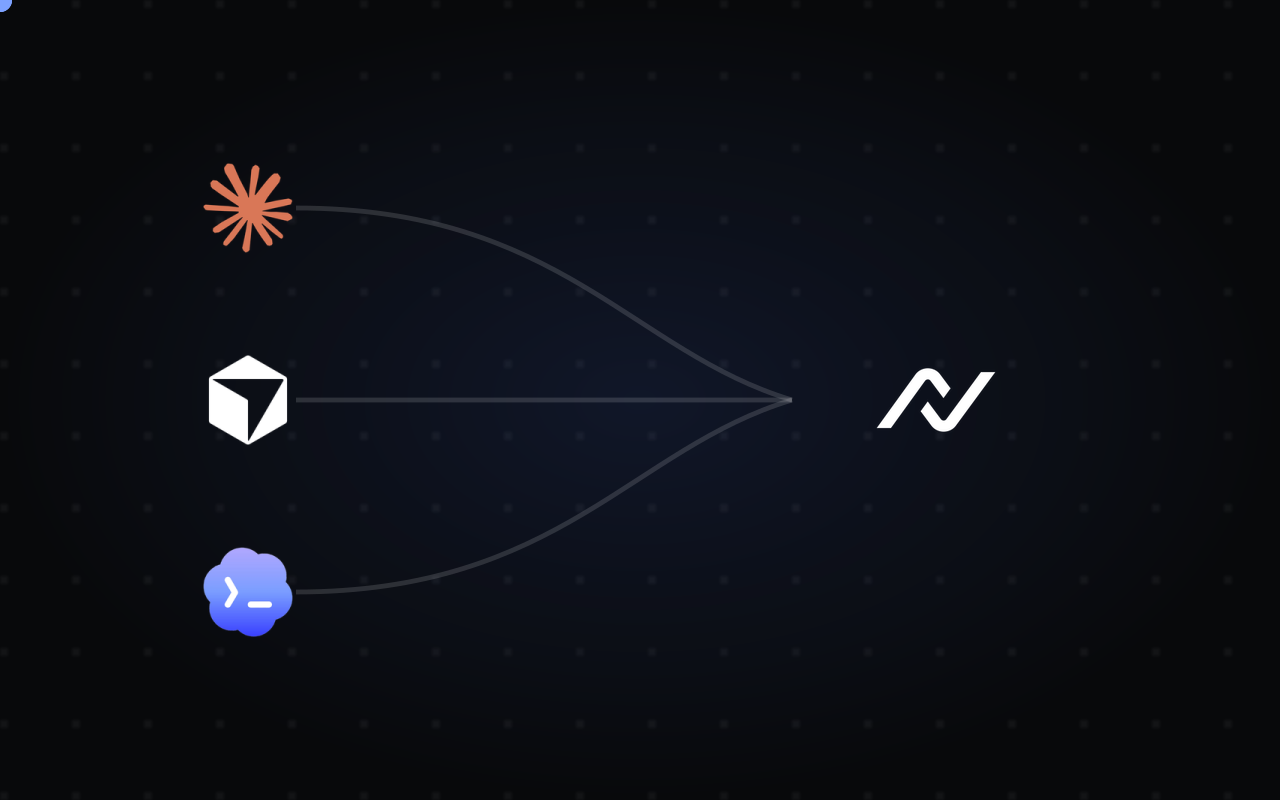
Connect your agent
Follow the steps on screen to add the config to your agent, then send the test prompt.
Permissions down to the single tool
You do not allow Hex MCP or block it. You allow the exact tools each agent can call, one by one.
| Hex MCP | 18 TOOLS AVAILABLE |
|---|---|
| Code review agent | 4 tools, read only |
| Issue triage bot | 9 tools |
| Platform team assistant | all 18 tools |
- Tool by toolConnecting the server is not the unit of access. Each tool is granted on its own.
- Default denyA tool you have not enabled is never exposed to the agent.
- Approval on writesTools that change or delete things can require a human to confirm.
Is Hex MCP secure?
One endpoint instead of raw credentials. Every call is checked against policy and logged.
| AI agentsConnect through your MCP client configuration. | NeuralTrustApply controls based on your configuration. | Hex MCP18 documented tools at app.hex.tech/mcp over OAuth, with custom URLs for single-tenant, EU and HIPAA deployments. Currently in beta, on Team and Enterprise plans. Knowledge tools need the Explorer role, project editing needs Editor, and per-project permissions are enforced on top. MCP access is not covered by the workspace API access setting; only deactivating the user revokes it. |
|---|---|---|
| Coding assistants | Connection & credentialsper user | Projects & Cells7 tools |
| Internal copilots | Tool access policiesdeny by default | Knowledge5 tools |
| Workflow automations | Request & response inspectioninline | Execution5 tools |
| Compatible MCP clients | Activity monitoringalerts and logs | Data Connections1 tool |
Use Hex MCP with any AI agent framework
Setup guides for the tools your team already uses.
 Claude CodeAdd Hex MCP to Claude Code from the terminal
 CursorUse Hex MCP tools inside Cursor's agent
 CodexConnect Hex MCP to the OpenAI Codex CLI
 WindsurfGive Windsurf's Cascade access to Hex MCP
 Gemini CLICall Hex MCP from Gemini CLI prompts
 Google AntigravityLet Antigravity agents work with Hex MCP
 GitHub CopilotUse Hex MCP in Copilot agent mode
 Claude EnterpriseRoll out Hex MCP across your Claude workspace
 Microsoft Copilot StudioAdd Hex MCP as a tool for Copilot Studio agents
 Open WebUIBring Hex MCP tools into Open WebUI chats
 LangChainLoad Hex MCP tools into LangChain agents
 HaystackPlug Hex MCP into Haystack agent pipelines
 Strands AgentsGive Strands agents Hex MCP tools
 Vercel AI SDKCall Hex MCP from Vercel AI SDK apps
 n8nUse Hex MCP in n8n AI agent workflows
Common questions about running Hex MCP through TrustGate.
Other MCP servers
More servers from the catalog.

Cube
Securely connect your AI agents to Cube through TrustGate: semantic model search and SQL, agent chat, reports and dashboards, model editing on dev branches, commits and pre-aggregations, scoped per agent and logged.
30 toolsView)
GoodData
Securely connect your AI agents to GoodData through TrustGate: metrics, visualizations and dashboards, governed metric creation, AI search and chat, datasource scanning, alerts and exports, scoped per agent and logged.
35 toolsView)
Atlan
Securely connect your AI agents to Atlan through TrustGate: catalog search and lineage, asset and custom metadata, tags, glossary, domains, quality rules, warehouse queries and knowledge, scoped per agent and logged.
41 toolsView
Braintrust
Securely connect your AI agents to Braintrust through TrustGate: SQL over logs, experiments and datasets, traces, prompts, evaluators, online scoring, Topics, dashboards, alerts and evals, scoped per agent and logged.
47 toolsView
Connect Hex MCP instantly
Pick the tools, point your agent at TrustGate, and Hex MCP is live: scoped, inspected, logged.